

Petroleum and Water Department (PWD) - 92F:
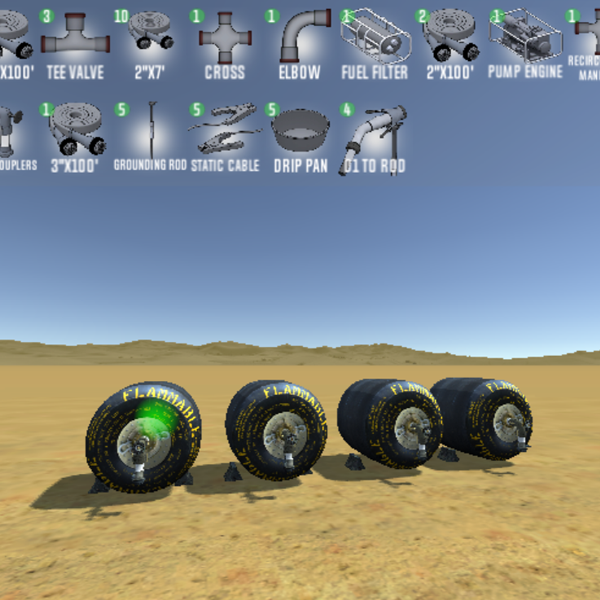
Unity Zip (Click for Instructions)
Advanced Aviation Forward Area Refueling System (AAFARS):Click to Access
Online Streamable | Zip Download: 218 MB
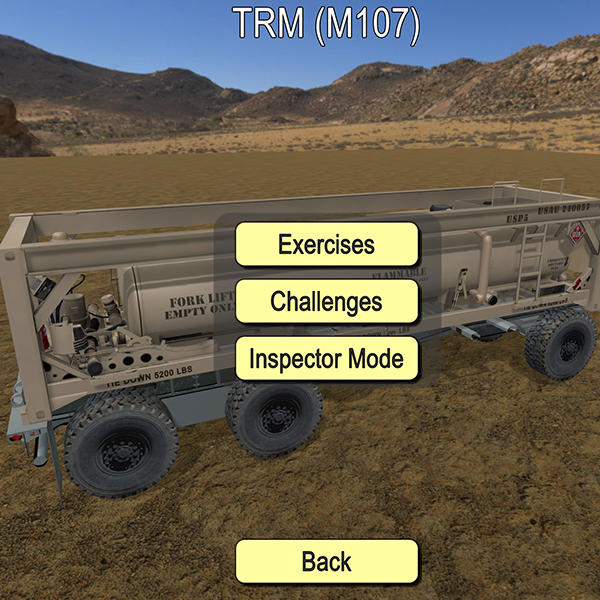
Online Streamable | Zip Download: 136 MB
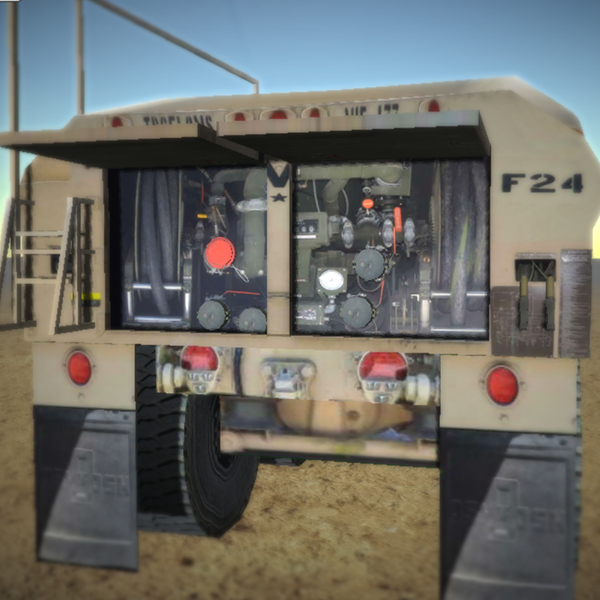
Zip Download: 87 MB
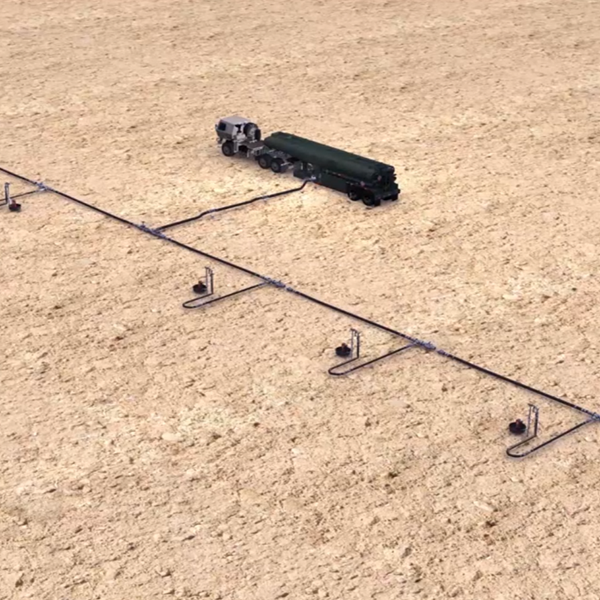
Zip Download: 84 MB
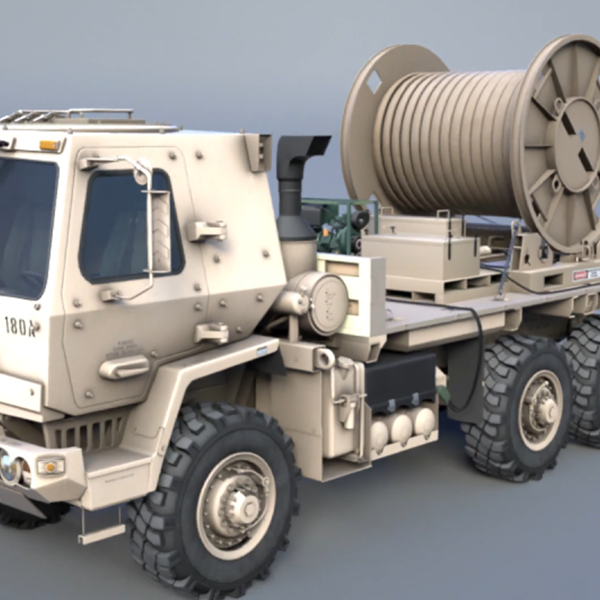
Online Streamable
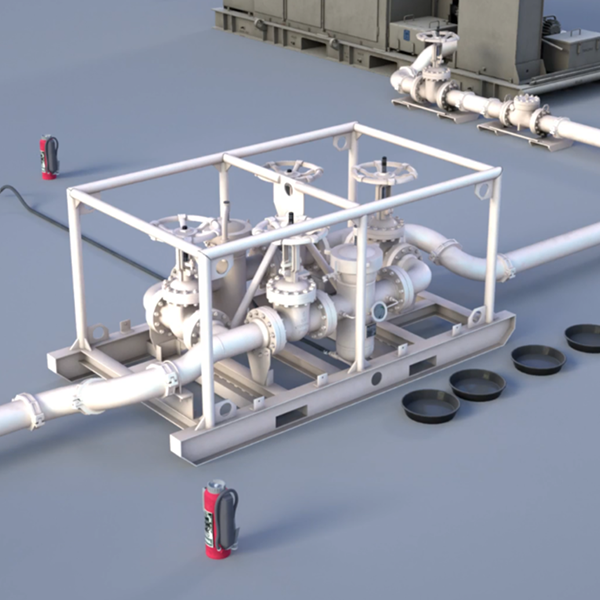
Online Streamable
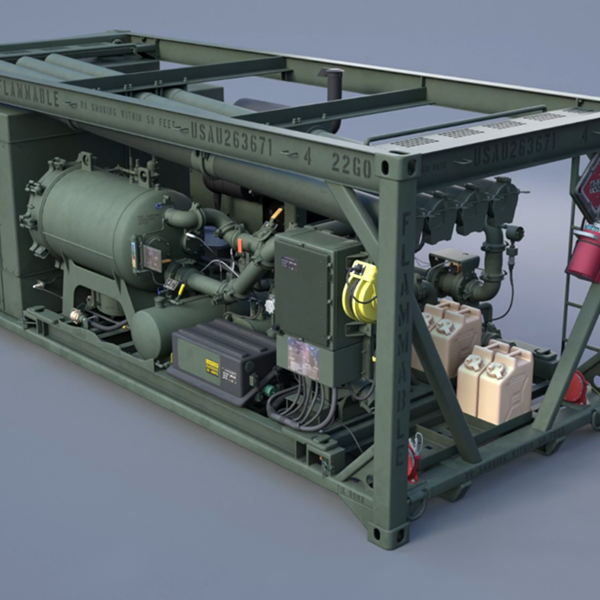
Online Streamable
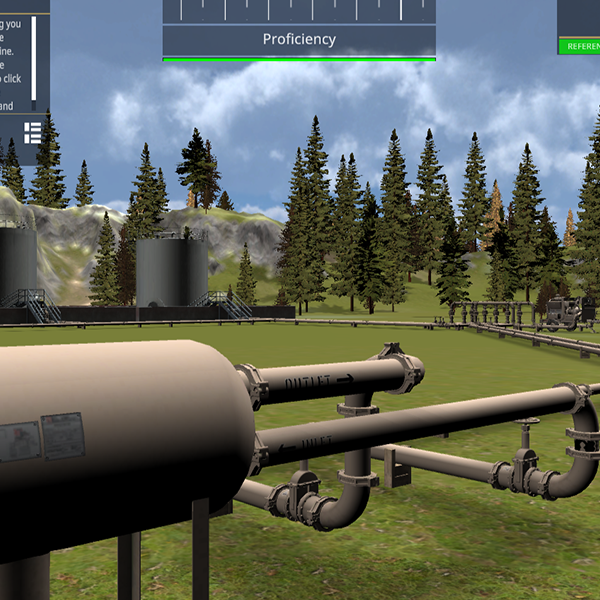
Unity Zip (Click for Instructions) | APK File
Manifold Operation:Click to Access
Zip Download: 331 MB
Unity Zip (Click for Instructions) | APK File
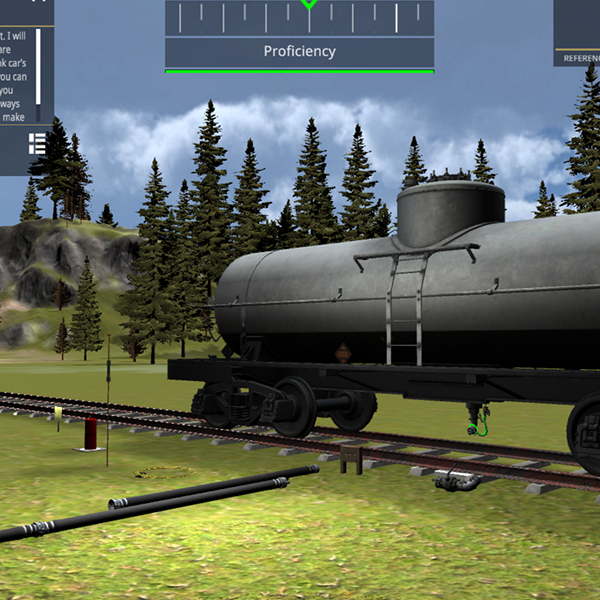
Railcar Operation:Click to Access
Zip Download: 398 MB
Unity Zip (Click for Instructions) | APK File
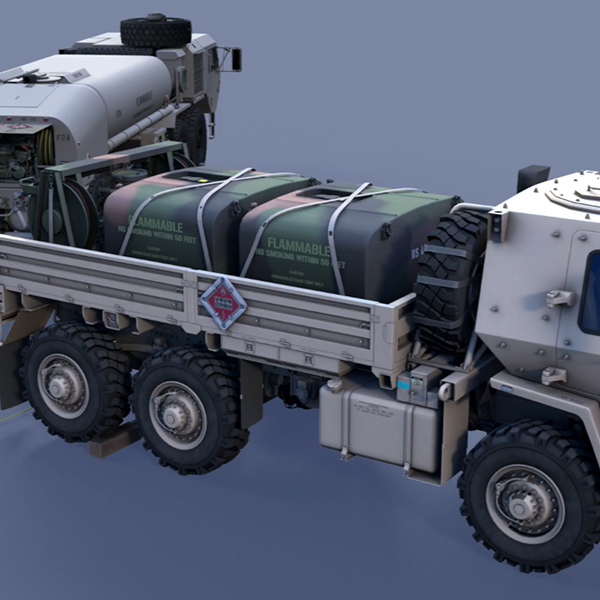
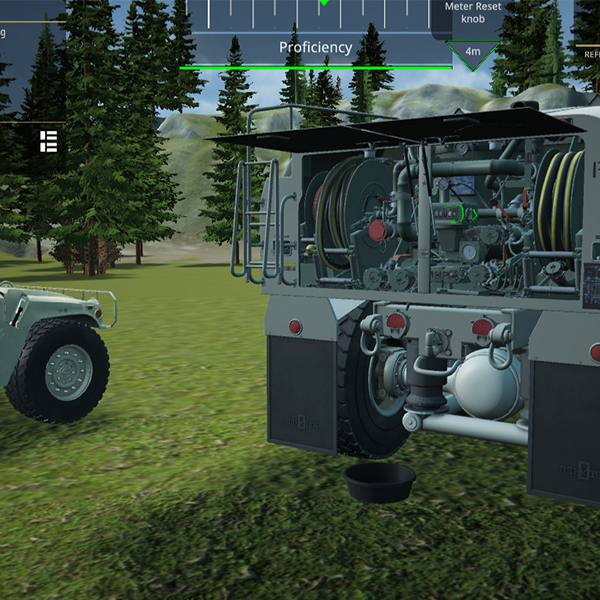
Tank and Pump Unit:Click to Access
Zip Download: 521 MB
Online Streamable
Unity Zip (Click for Instructions) | APK File
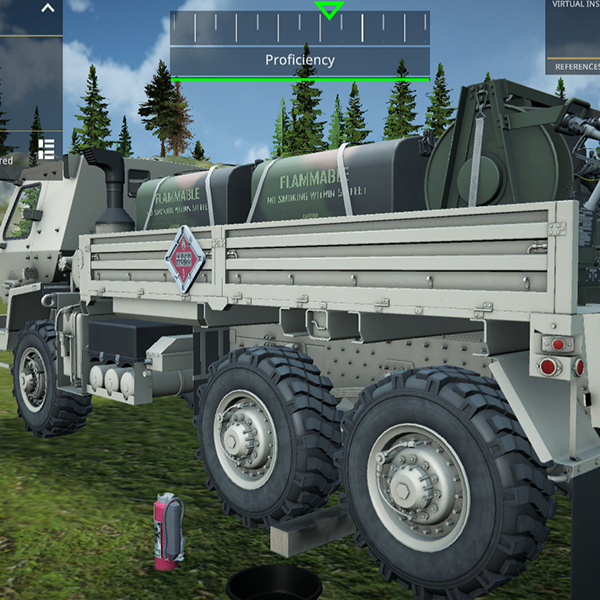
HEMTT Operations:Click to Access
Zip Download: 507 MB
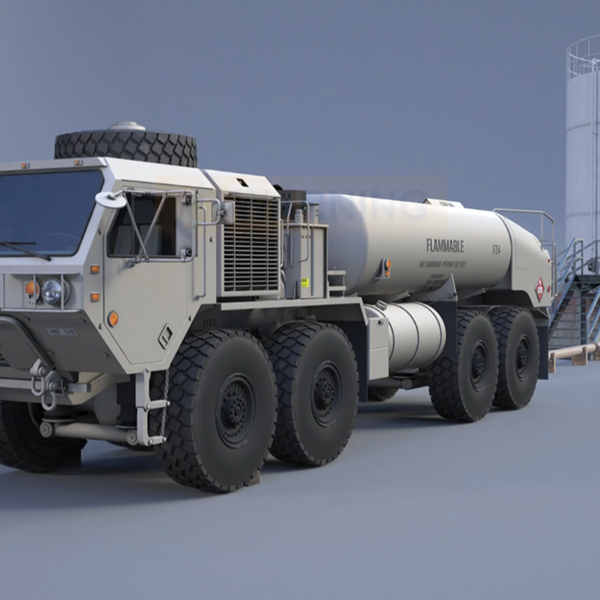
Online Streamable
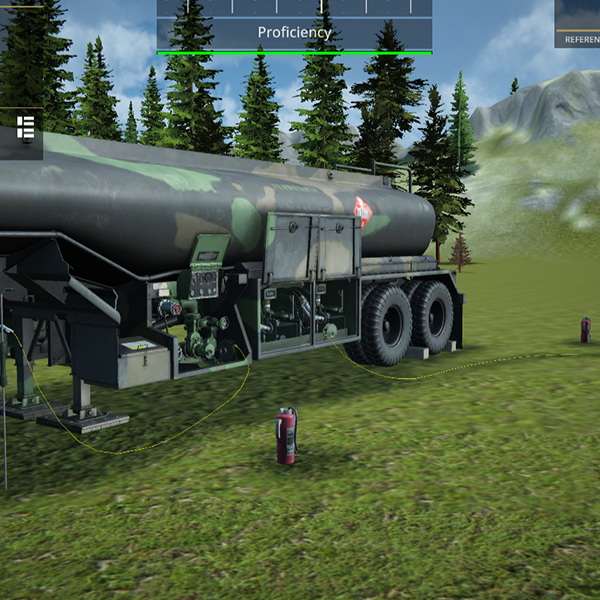
Unity Zip (Click for Instructions) | APK File
M969A1 Operations:Click to Access
Zip Download: 573 MB
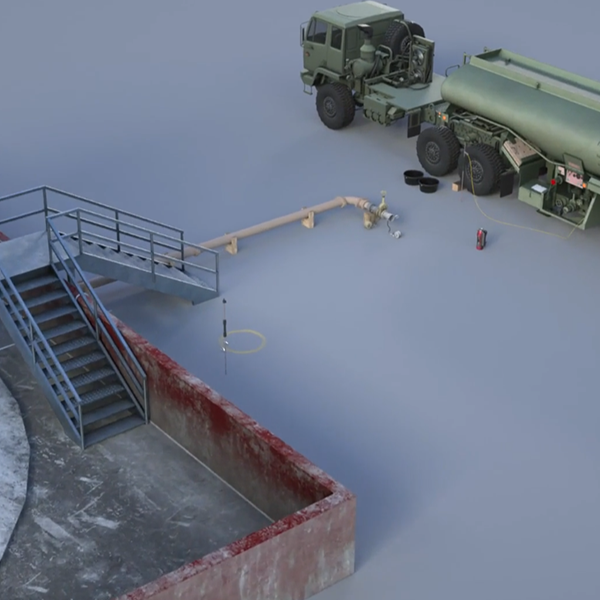
Online Streamable
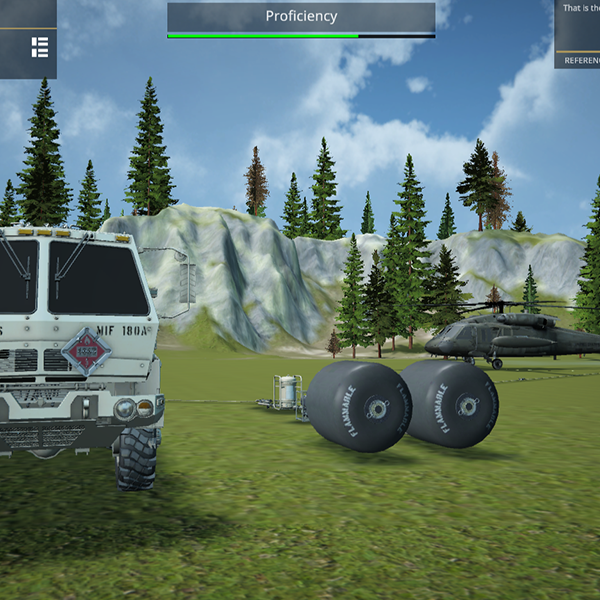
Unity Zip (Click for Instructions) | APK File
FARE II:Click to Access
Zip Download: 508 MB
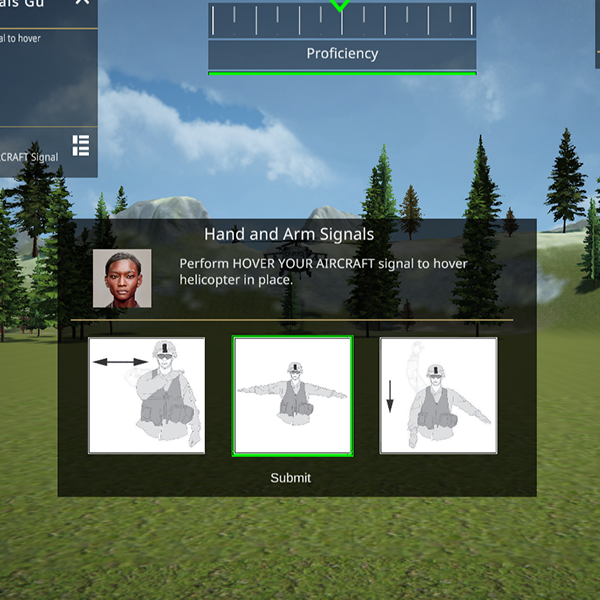
Unity Zip (Click for Instructions) | APK File
Hand and Arm Signals:Click to Access
Zip Download: 218 MB
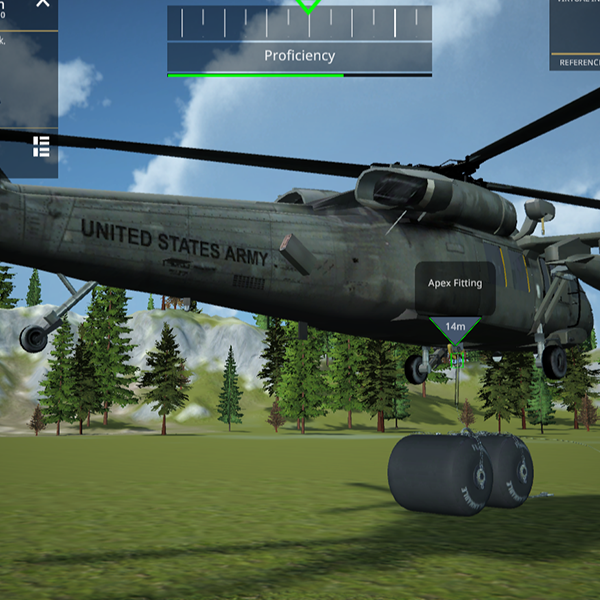
Unity Zip (Click for Instructions) | APK File
Sling Load Operations:Click to Access
Zip Download: 283 MB
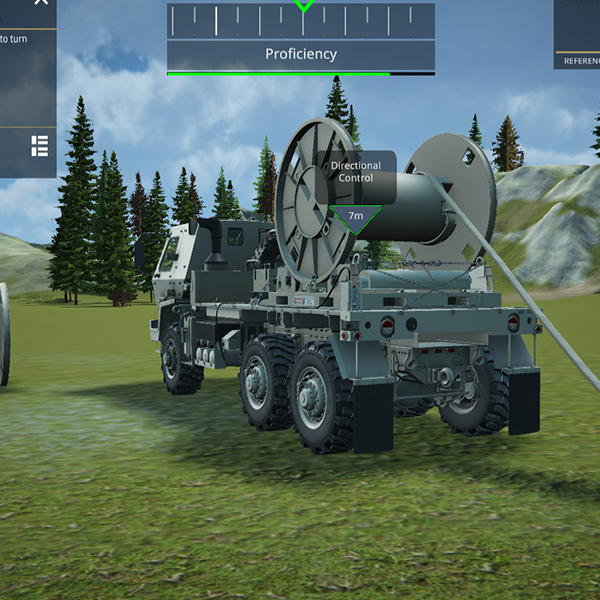
Unity Zip (Click for Instructions) | APK File
Assault Hose Line Operations:Click to Access
Zip Download: 530 MB
Unity Zip (Click for Instructions) | APK File
Fuel System Supply Point:Click to Access
Zip Download: 619 MB
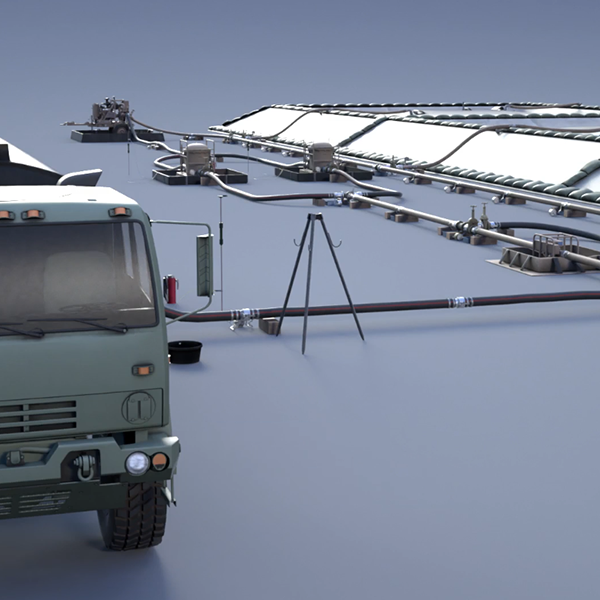
Online Streamable
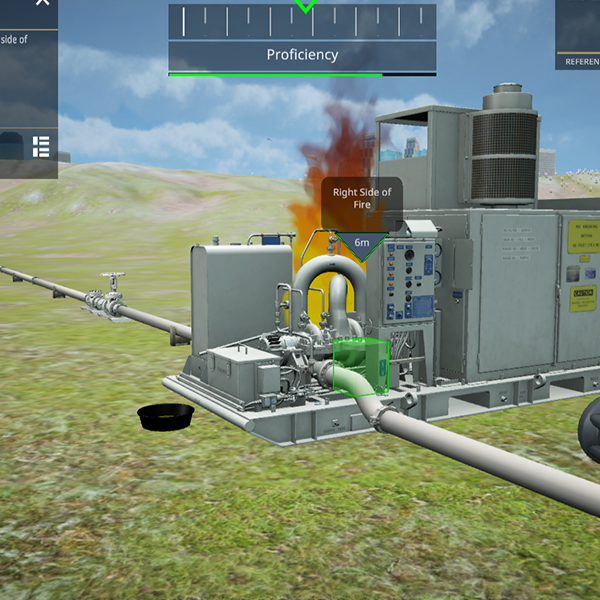
Unity Zip (Click for Instructions) | APK File
Fire Suppression Equipment System:Click to Access
Zip Download: 472 MB
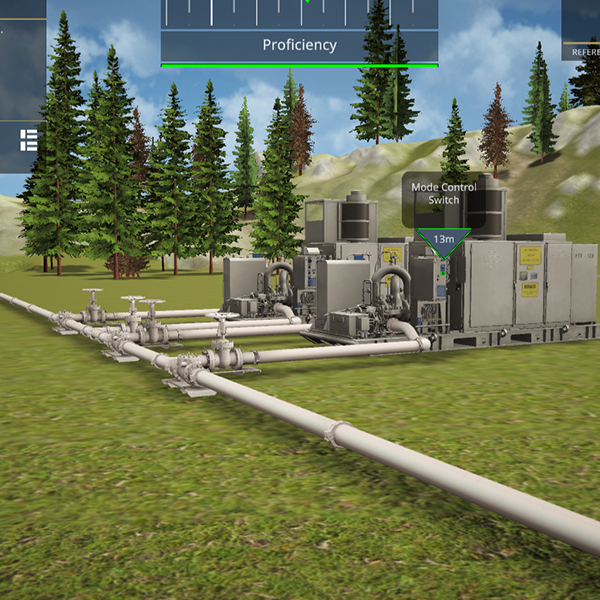
Unity Zip (Click for Instructions) | APK File
Pump Parallel Transfer and Pump Series:Click to Access
Zip Download: 436 MB
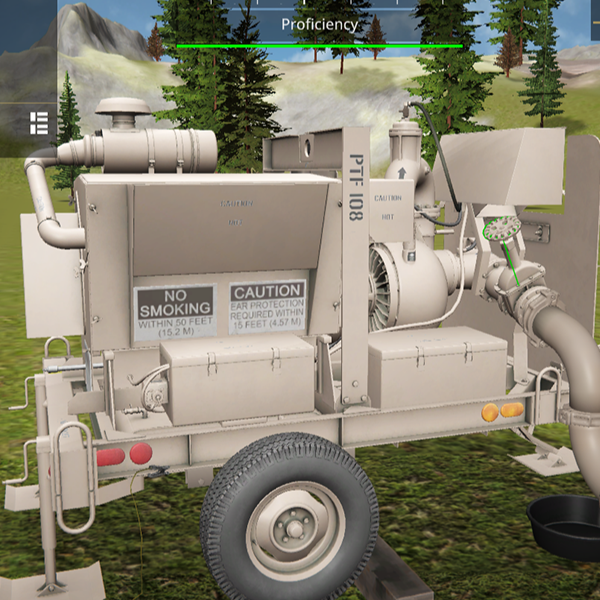
Unity Zip (Click for Instructions) | APK File
Flood and Transfer Pump 600 GPM:Click to Access
Zip Download: 374 MB
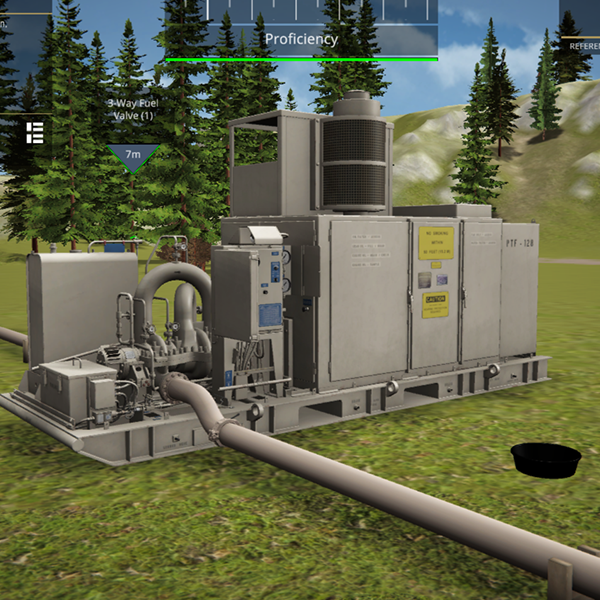
Unity Zip (Click for Instructions) | APK File
Mainline Pump 800 GPM:Click to Access
Zip Download: 342 MB
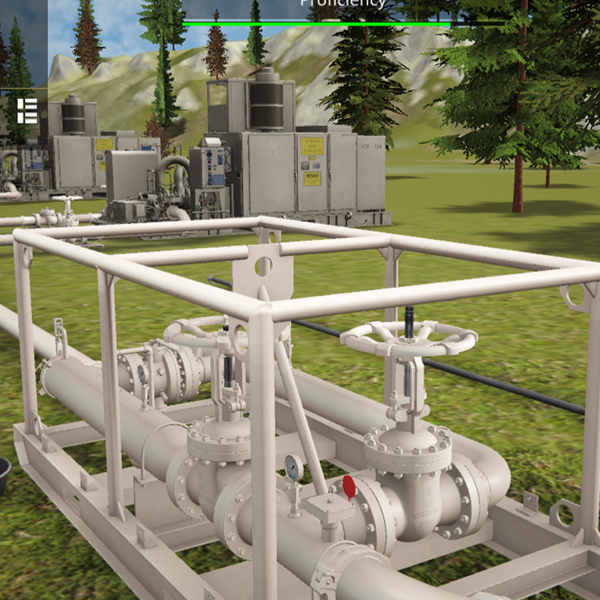
Unity Zip (Click for Instructions) | APK File
Launcher and Receiver Assemblies Operations:Click to Access
Zip Download: 498 MB
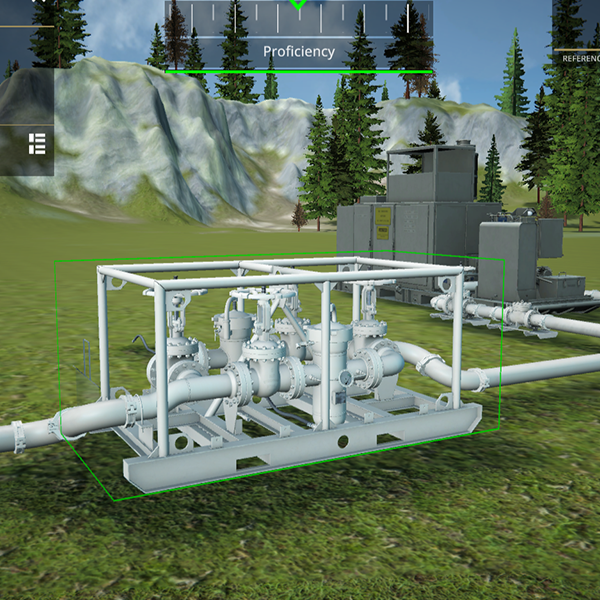
Unity Zip (Click for Instructions) | APK File
Strainer Assembly Operations:Click to Access
Zip Download: 495 MB
Introduction to Marine Corps Fuel Equipment:
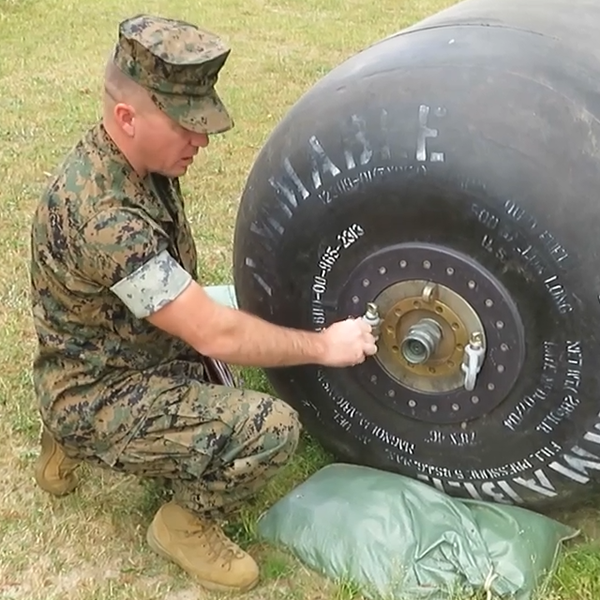
Zip Download: 84 MB
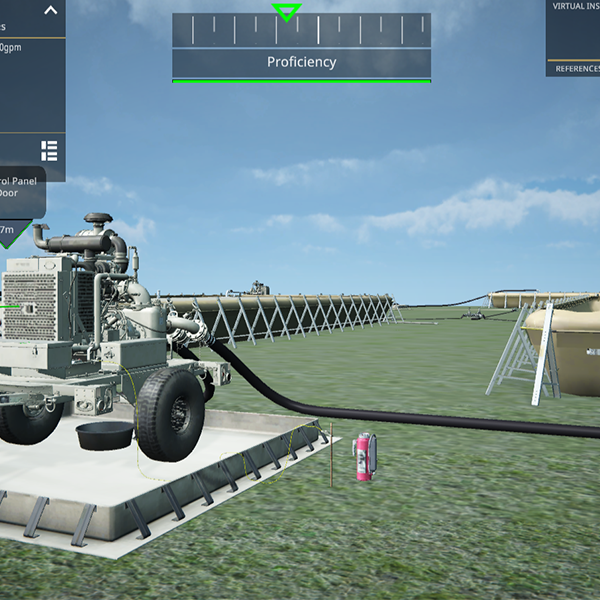
Unity Zip (Click for Instructions) | APK File
Amphibious Assault Fuel System (AAFS) Part One:Click to Access
Zip Download: 437 MB
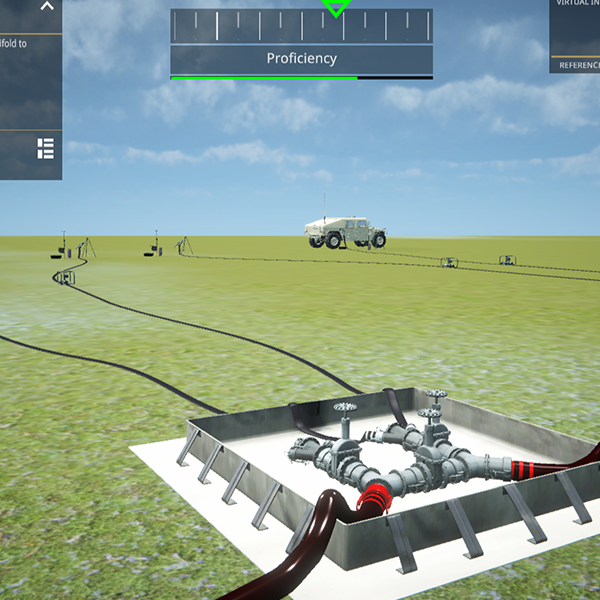
Unity Zip (Click for Instructions) | APK File
Amphibious Assault Fuel System (AAFS) Part Two:Click to Access
Zip Download: 511 MB
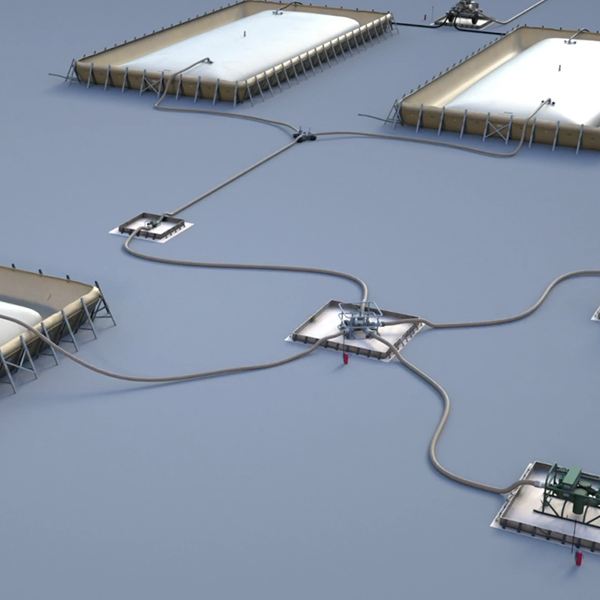
Online Streamable
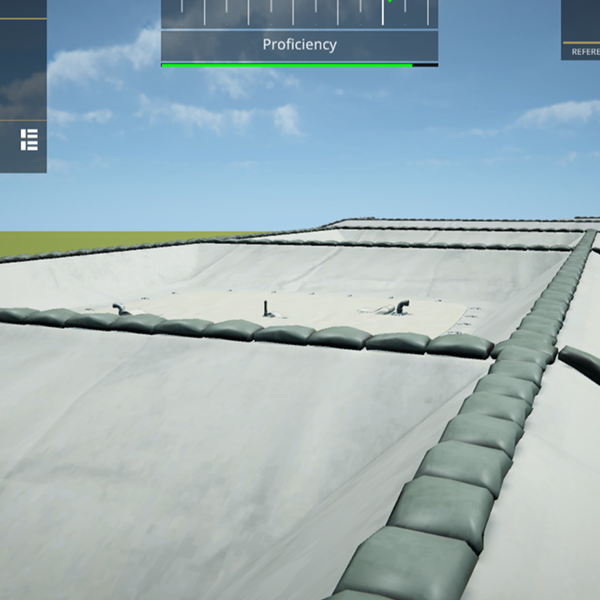
Unity Zip (Click for Instructions) | APK File
Tactical Airfield Fuel Dispensing System (TAFDS) Assembly:Click to Access
Zip Download: 360 MB
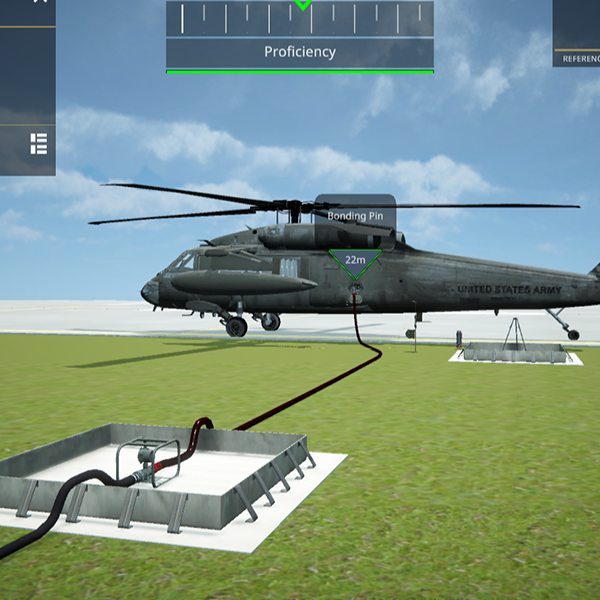
Unity Zip (Click for Instructions) | APK File
Tactical Airfield Fuel Dispensing System (TAFDS) Operations:Click to Access
Zip Download: 553 MB
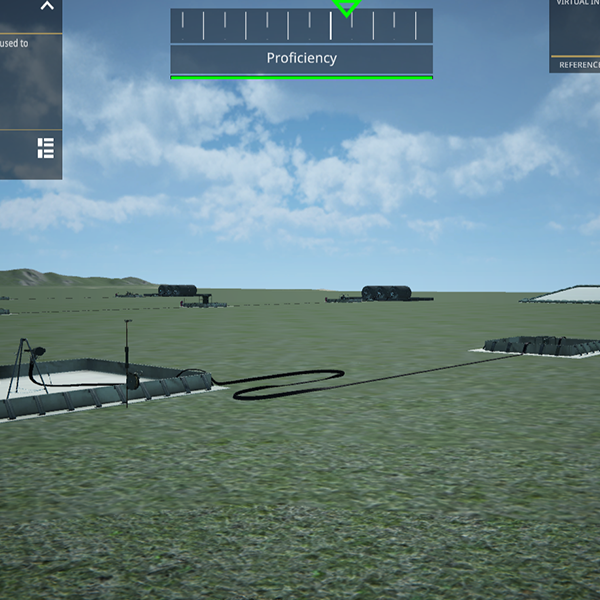
Unity Zip (Click for Instructions) | APK File
Helicopter Expedient Refueling System (HERS):Click to Access
Zip Download: 253 MB
Instructions for Extracting and Running Unity Zip Files
Please follow the instructions below for extracting and running downloaded Unity Zip files. Contact us at this email if you have any questions.
Instructions for Chrome
- Step 1: Download the Unity Zip file from the link on the product card.
-
Step 2: Locate the downloaded
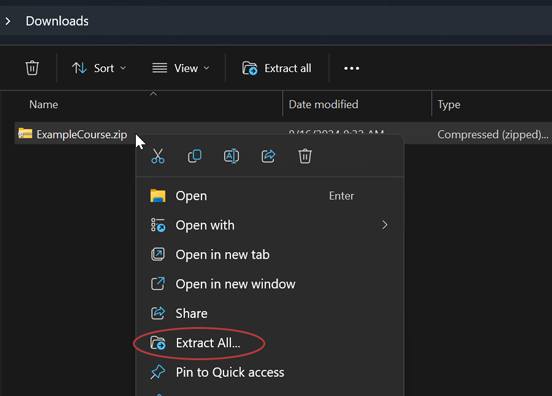
zip file on your computer. Right-click on the zip and select
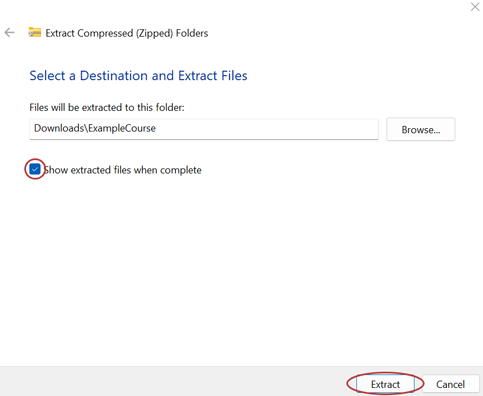
"Extract All" from the dropdown menu. A new window appears.
Ensure "Show extracted files when complete" is checked.
Click "Extract."
-
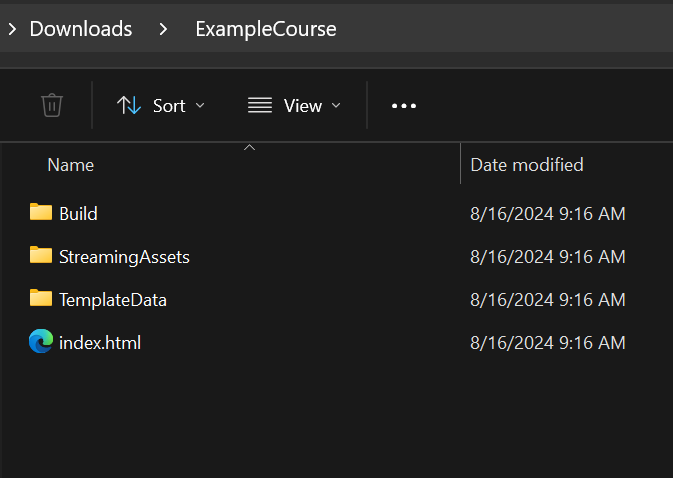
Step 3: The extracted
folder will open in a new window. Leave this folder open for
a later step.
- Step 4: Click Here to download the "Chrome_IMI_Launcher.zip" file.
- IMPORTANT! Make sure that Google Chrome is NOT OPEN on your computer prior to performing the next step.
-
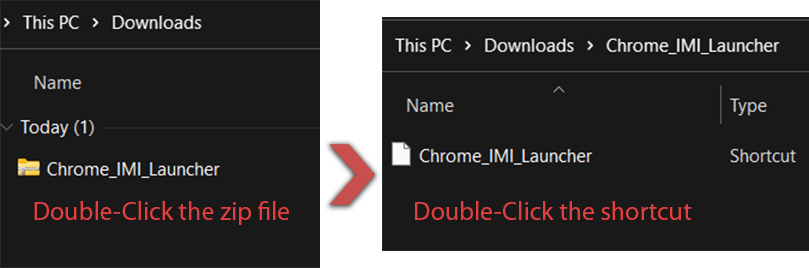
Step 5: Locate the
"Chrome_IMI_Launcher.zip" file downloaded in the last step.
Double-click to view the contents. Double-click on the
"Chrome_IMI_Launcher" shortcut file inside of the zip. If
prompted with "Do you want to open this file?" then click
"Open." A new Google Chrome window should automatically open
if this step was performed successfully.
-
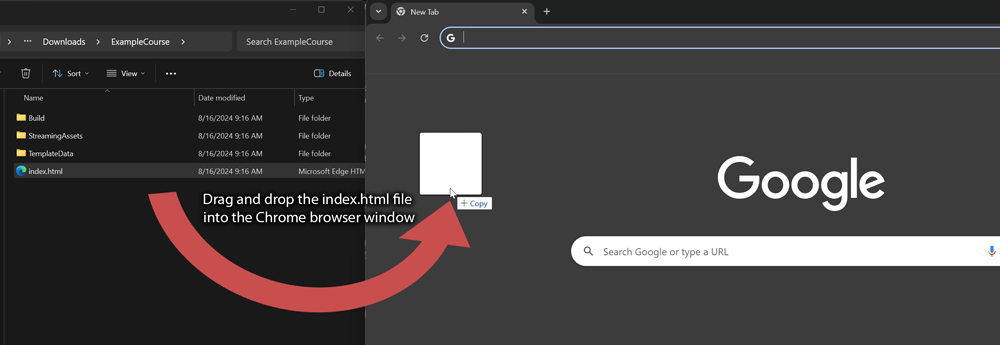
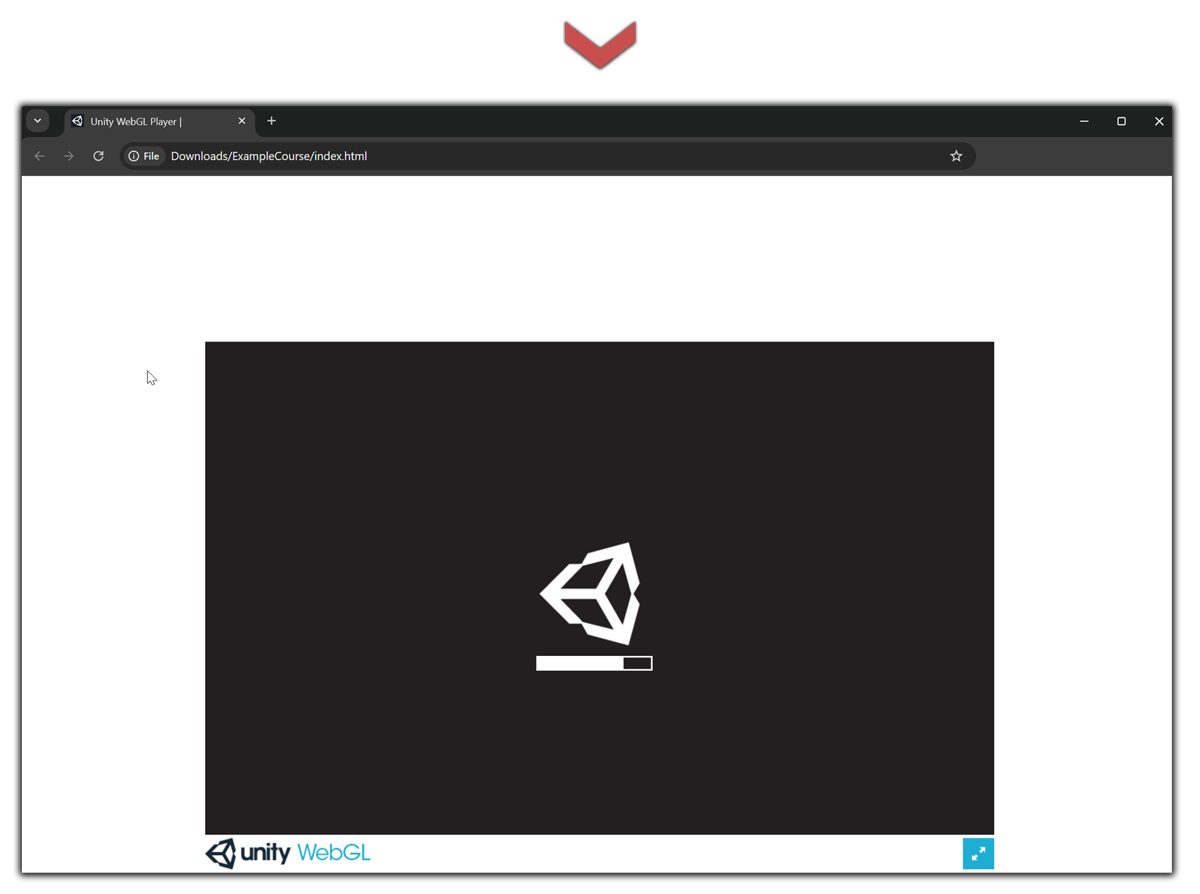
Step 6: Leave the new Chrome
window open. Find the folder with the extracted Unity
download from Step 3. Drag and drop the "index.html" file
from the extracted Unity folder into the Chrome browser
window. This will open the Unity file in Chrome.
Instructions for Firefox
- Step 1: Download the Unity Zip file from the link on the product card.
-
Step 2: Locate the downloaded
zip file on your computer. Right-click on the zip and select
"Extract All" from the dropdown menu. A new window appears.
Ensure "Show extracted files when complete" is checked.
Click "Extract."
-
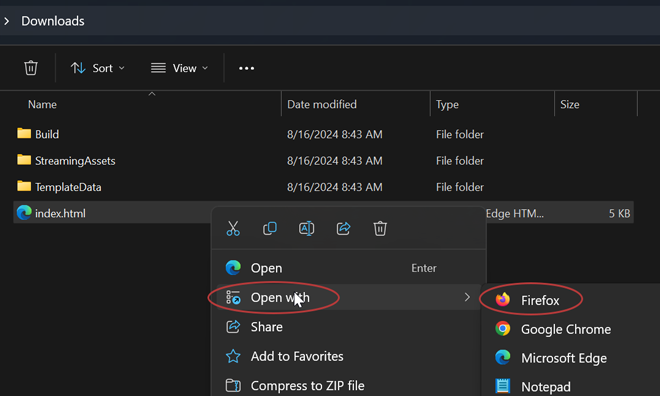
Step 3: The extracted folder
will open in a new window. Locate the "index.html" file and
right-click, then select "Open With." Select Firefox as the
browser to open the file with. The product will open in
Firefox.
- Step 4: If you
receive the following error message
after opening with Firefox: "It seems your browser
does not support running Unity WebGL
content from file:// urls. Please upload it to an
http server, or try a different
browser." Complete steps a and b below to correctly
configure Firefox for 3D playability.
-
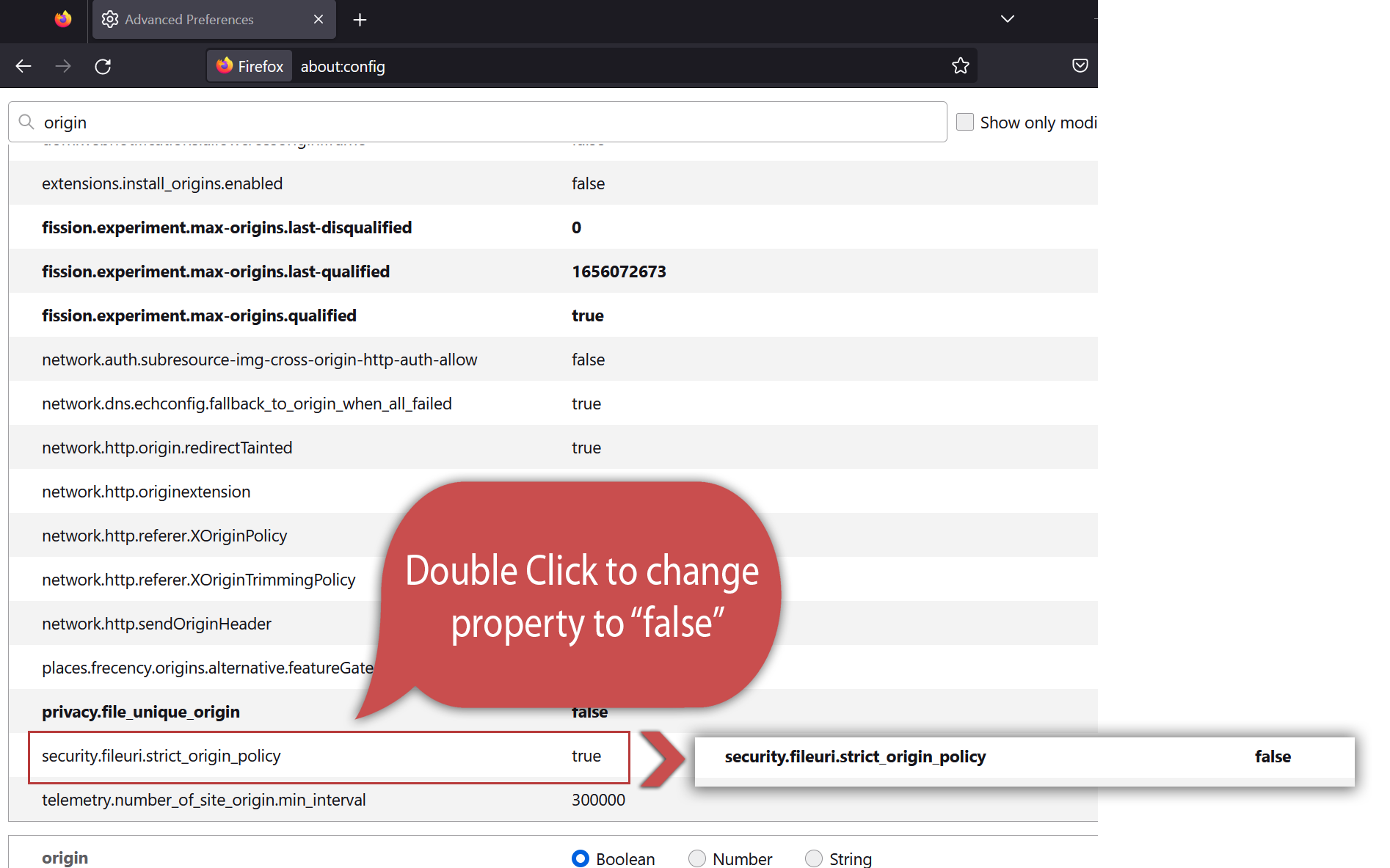
a.) In the address
bar of Firefox, type "about:config"
(without quotes.) Hit enter.

-
b.) Type "origin" in
the Search browser and double-click
"security.fileuri.strict_origin_policy" to change
value from "true" to "false" as depicted
below. Firefox is now configured for 3D IMI
playability.
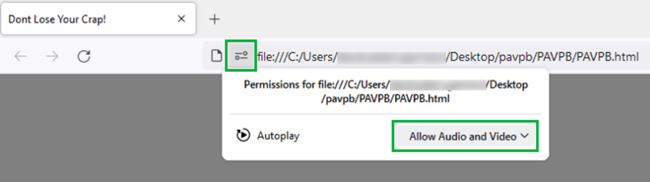
- NOTE: If
the product does not automatically play video within
the training, you may have to allow autoplay. Click
on the “Permissions Panel” button as shown below,
and select “allow video and audio.”
-
a.) In the address
bar of Firefox, type "about:config"
(without quotes.) Hit enter.
Instructions for Edge
Currently, Edge does not support running downloaded Unity WebGL content. Please utilize Chrome or Firefox as described in the other tabs above. If a streaming option exists for the product you're wanting to run, it is recommended that you click the "Streamable" link in any browser you choose.
Instructions for Extracting and Running IMI Zip Files
Please follow the instructions below for extracting and running downloaded IMI Zip files. Contact us at this email if you have any questions.
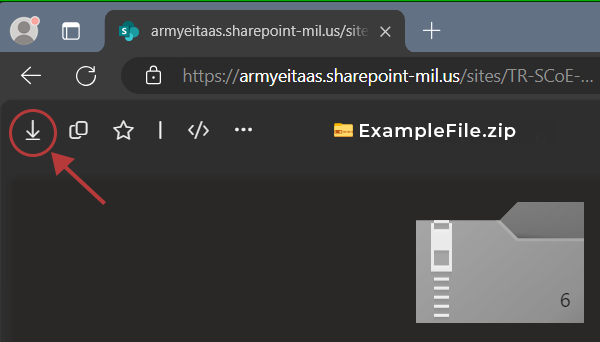
- Step 1: Download the zip file
from the link in the product card.
Note: for SharePoint downloads,
you'll find a download button in the top-left corner on the
SharePoint page, as shown below.
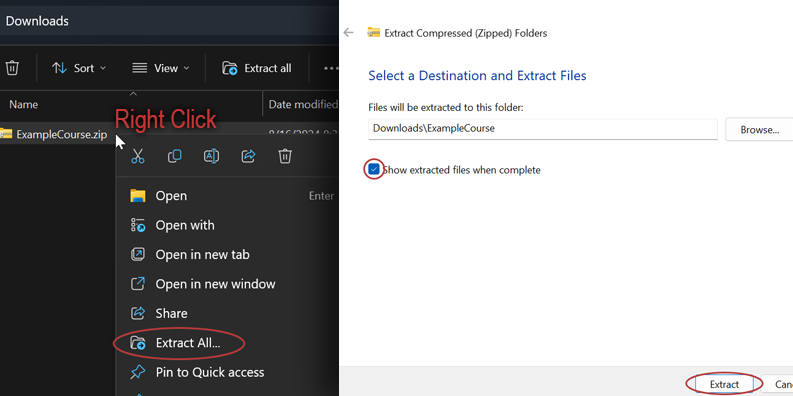
- Step 2: Locate the
downloaded zip file on your computer. Right-click on the zip and
select "Extract All" from the dropdown menu. A new window
appears. Ensure "Show extracted files when complete" is checked.
Click "Extract."
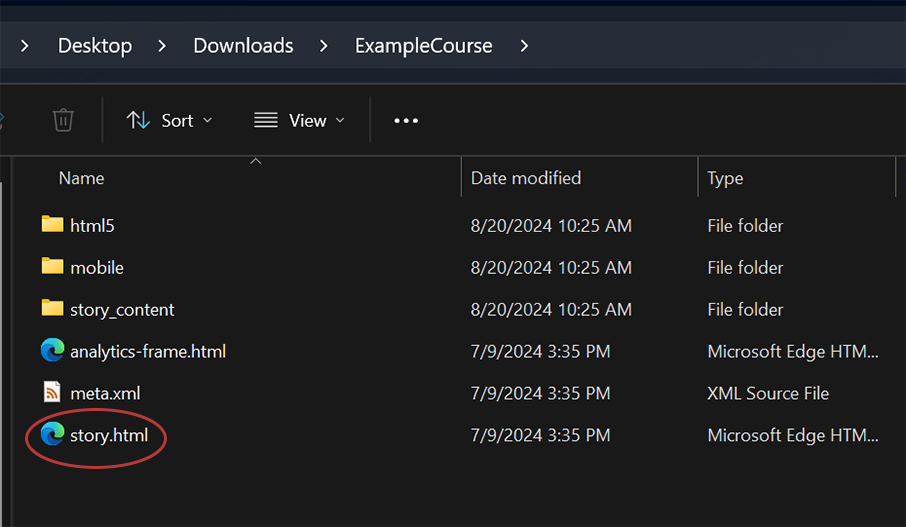
- Step 3: The
extracted folder will open. Double-click the "story.html" or "index.html" file
to view the IMI.
Click the link below to download the product:
Download Zip FileClick the link below to stream the product:
Stream OnlineClick the link below to access the files:
Click HereClick one of the following:
Click one of the following:
Click one of the following: